WordPress Maintenance Checklist for Business Websites
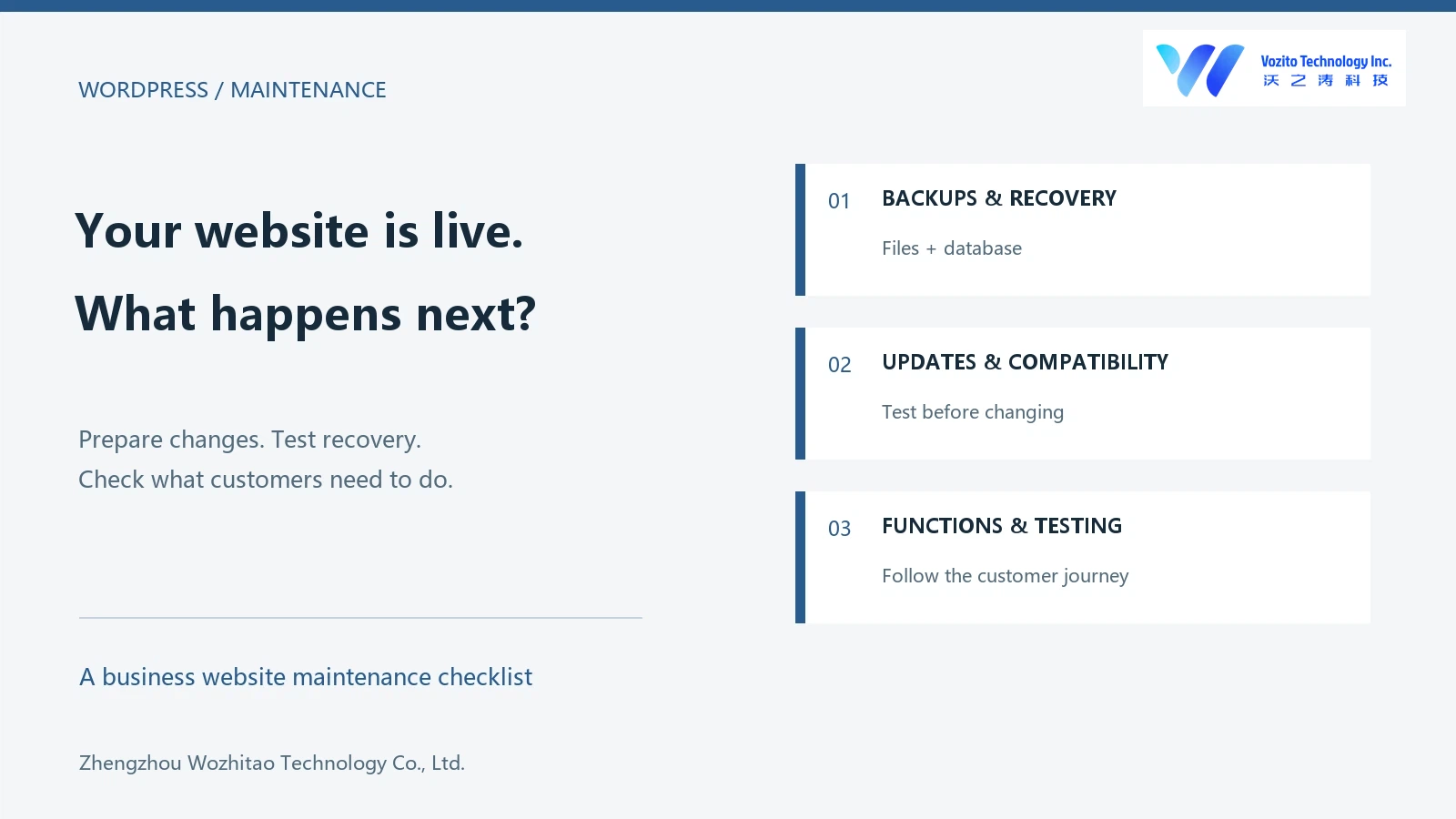
Can customers still send an enquiry just because the home page loads? Not always. A form may have stopped delivering email, or a backup may be missing the database. Maintenance checks these less visible problems so customers can use the site and there is a way to recover when something fails.
For an existing WordPress website, start with four checks: who controls the accounts, whether backups can be restored, how updates are handled and whether key functions work. Shops, membership sites and connected systems also need checks of orders, sign-in and data transfers.

1. Establish ownership and keep access organised
List the services that keep the site running: the domain name, hosting, WordPress administration, business email, content delivery network and important plugin licences. For each one, identify the owner, renewal date and account recovery method. Discovering that a domain belongs to a former employee’s personal account is much harder to deal with during an outage.
WordPress administrator access is not the same as control over the domain or server. Equally, finishing a website project does not automatically mean that hosting renewals, plugin licences, ongoing changes and troubleshooting remain included. Record who is responsible for each area and how requests should be raised.
Give people the access they need for their work. Someone publishing articles usually does not need full administrator privileges. Temporary support access should be reviewed when the task is complete. Share credentials through an appropriate private channel, rather than leaving them in public comments or screenshots.
2. Check that backups can actually be restored
A typical WordPress recovery requires both the database and the files. Posts and many settings live in the database; themes, plugins and uploaded images are files. Downloading the website directory does not usually include the database, and a database export alone will not bring back all the images or custom code. The official WordPress backup guide explains this distinction.
Find out when the last successful backup ran, what it contains, where it is stored and who can retrieve it. A success notification is useful, but it is not evidence that the whole site has been restored successfully. Keep an appropriately protected copy in a separate location so that a single hosting failure does not remove both the website and its recovery material.
Choose backup frequency around the amount of data the business can afford to lose. A brochure site that changes occasionally has different needs from a shop receiving orders throughout the day. Restoring yesterday’s shop backup can affect orders received since then, so the recovery plan needs to account for new transactions rather than simply returning the pages to an earlier state.
Test a recovery in an isolated environment. Check that you can sign in, that pages and media are present, and that essential functions work. Prevent the test copy from sending real customer emails, taking payments or pushing duplicate data to connected services. Do not overwrite the live website just to find out whether a backup is usable.
3. Prepare updates around compatibility and recovery
WordPress core, themes, plugins and the server’s PHP environment can all affect the site. Review the changes and compatibility requirements before applying an update. The WordPress updating guide also recommends taking a backup first. Leaving everything untouched indefinitely is not a dependable alternative.
A simple brochure site and a shop with custom extensions should not follow an identical update checklist. Major version changes and payment-related components deserve testing in a separate environment before changes reach the live site. Updates that address a known security issue need prompt assessment rather than an open-ended delay.
Record the starting versions, planned changes, backup time and person responsible. Avoid combining a redesign, several major plugin upgrades and a hosting move in one operation where possible. If a fault appears, separate changes make the cause easier to trace. Remember that reverting files may not reverse database changes made by an update.
For a site that continues to receive orders or form entries, agree on a suitable change window and how new data will be handled. The goal is to preserve the customer journey, not just make the update notification disappear.
4. Test what customers need to do
After a change, visit the site in a signed-out browser and use a phone as well. Administrators may see a different result because of permissions or caching. A working page in an editor’s browser is not enough to confirm the visitor experience.
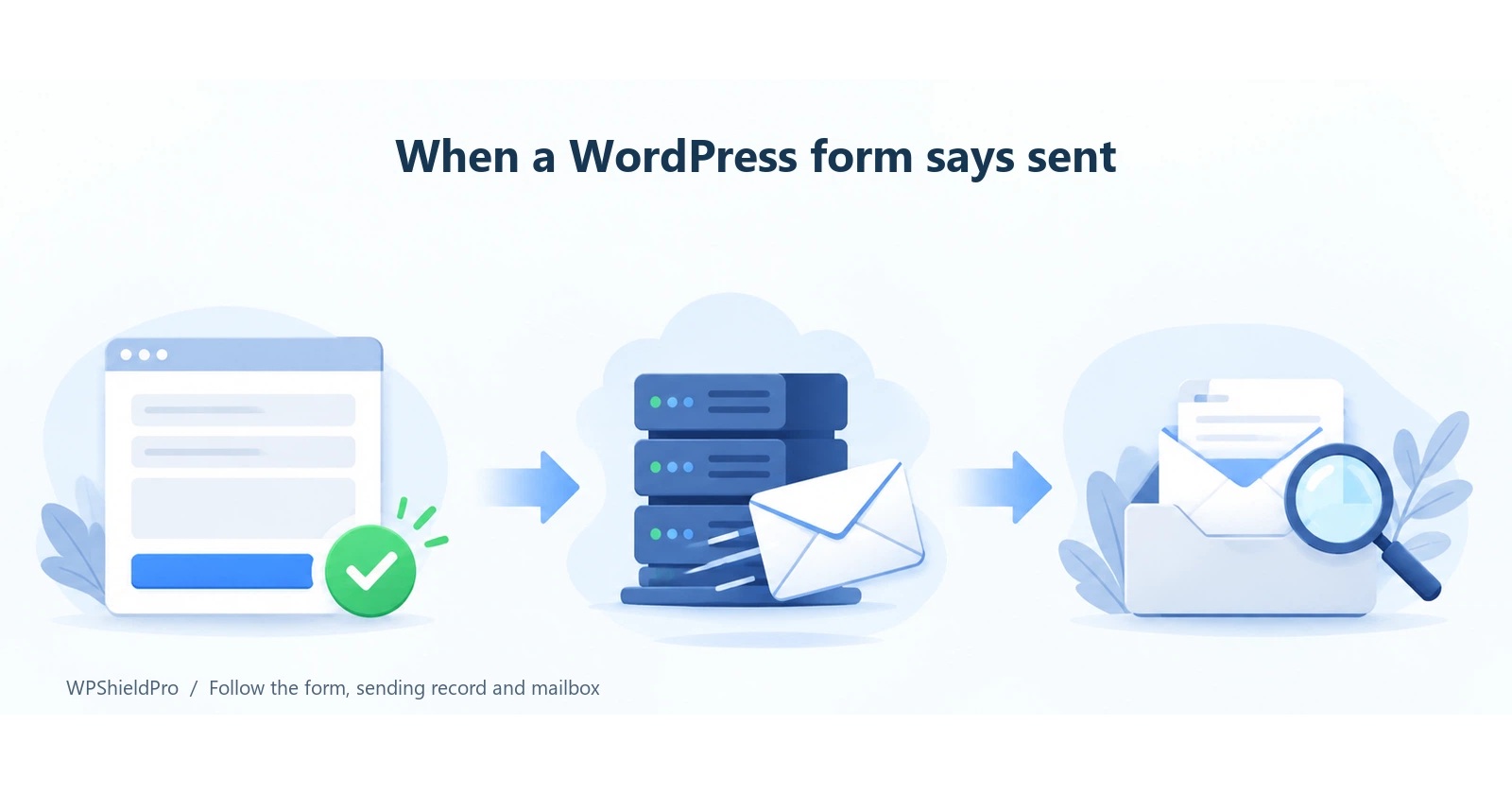
On a business website, check the main pages, contact details, menus, search and enquiry forms. For a form, follow the process through to delivery in the intended inbox. A “submitted successfully” message does not prove that anyone received the enquiry. If delivery is missing, follow our guide to tracing a form submission that produces no email. Mark test messages clearly and use controlled recipients so that unrelated messages do not reach real customers.
For a shop, include product options, basket behaviour, discounts, checkout, order status and notifications. A membership site also needs registration, sign-in and access checks. Use the testing or sandbox arrangements supported by the payment provider and relevant plugins. Do not describe the whole transaction process as verified just because the home page loads.
If something fails, keep the page address, time, steps, screenshot and exact error message. These are more useful than a report that the website “sometimes breaks”. Review logs before sharing them: they can contain personal information or internal server details.

Use this checklist to organise the work. The scope and frequency should reflect the website's functions and business needs.
5. Match checks to the way the website changes
Separate routine observation, checks after a change and periodic reviews. Routine observation can cover availability, failed backup jobs and incoming enquiries. After an update or configuration change, test the affected functions. Periodic reviews can cover access, renewals, licences and recovery readiness.
A small brochure site with no functional changes does not need a full acceptance test every day. A newly replaced form needs immediate submission and delivery checks. A busy shop needs closer attention to transactions and data. Use a checklist to support that judgement, rather than treating every website as identical.
Keep a short maintenance record with the date, work performed, starting and ending state, test results and unresolved issues. Another person should be able to understand it without reconstructing the whole conversation. If a problem remains open, record its impact, any temporary arrangement and the next step. “Looked at” and “resolved” are different outcomes.
6. Agree on support scope and acceptance criteria
When requesting help, prepare the website address, its main purpose, the problem, recent changes and what you know about backups and access. You do not need to understand every technical detail before making an enquiry. Let the support provider identify the missing information, and avoid sharing every password at the first point of contact.
Ongoing maintenance, hourly work and a focused investigation serve different needs. Maintenance can define recurring checks and records. Hourly support can cover agreed technical or operational work within the purchased time; larger tasks may require more time or staged delivery. An unexplained fault may need investigation before a repair can be estimated. Third-party charges and any additional time should be discussed separately.
Ask what is included, what needs further agreement, who pays for external licences and how completion will be assessed. A complex integration may not be resolved in a single visit, but you should receive a clear account of what was found and what comes next.
Go through this checklist with whoever looks after the website. Fill the gaps, starting with access, backups and form delivery, then add checks for the way your business uses the site.
Originally published on WPShieldPro, operated by Zhengzhou Wozhitao Technology Co., Ltd. The illustrations are reused from the original article.
About the author
- WordPress maintenance and troubleshooting notes from WPShieldPro, operated by Zhengzhou Wozhitao Technology Co., Ltd. Based in Zhengzhou, China. Website: https://www.wpshieldpro.com/en/
Comments
Join the discussionNo comments yet. Be the first to comment.