After Moving WordPress to HTTPS, Trace the Broken Resource First
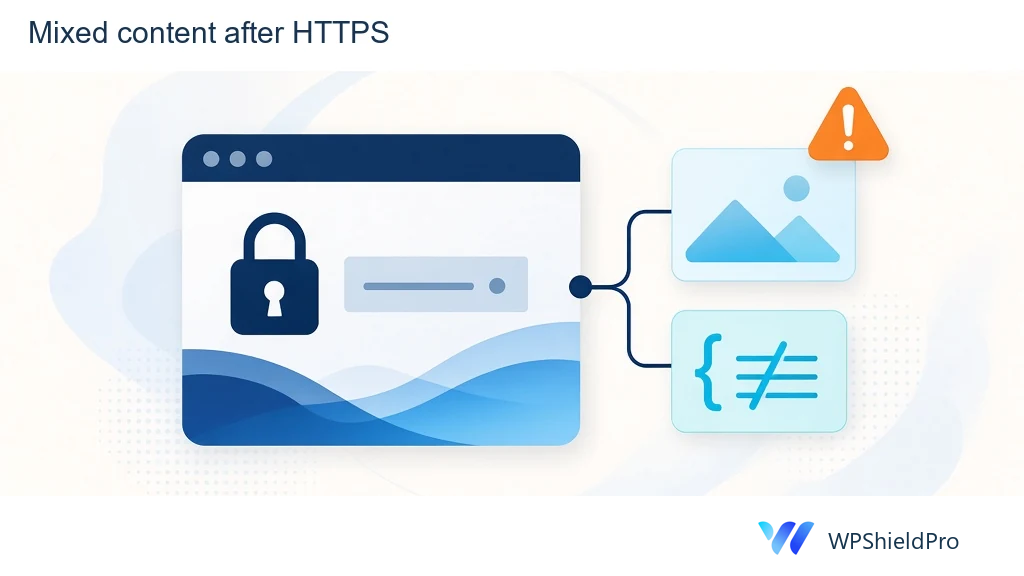
A WordPress page can open over HTTPS while a stylesheet, script or image still points to an HTTP address. That is mixed content. But a missing image after an HTTPS migration can also be a missing file, a certificate problem, an old generated stylesheet or a path left over from the move.
Before replacing URLs, keep one affected page open and find the request that explains the visible problem. The useful starting point is a page address, a resource address and a browser message—not the assumption that every change after installing a certificate has the same cause.
Separate the warning from the symptom
Open the browser's Console and Network panels, then reload the affected page. Record the warning and the resource URL. Check whether the browser blocked the request or whether a server actually returned an error.
Three observations lead to different investigations:
- An HTTPS page requests an HTTP stylesheet and the browser reports mixed content: investigate the insecure reference and its source.
- The requested resource already uses HTTPS but returns 404: check its path and whether the file exists at that destination.
- The secure resource fails certificate validation: investigate that connection before treating the issue as a WordPress content replacement.
An image loading successfully does not prove every reference is correct. Browsers can upgrade some mixed-content image requests to HTTPS, while other requests are blocked. Images referenced through CSS and responsive image markup need attention too. MDN's mixed-content documentation explains the resource-specific behavior.
Follow the request back to the field that created it
Suppose a product page displays its normal photographs but loses its large background image. This is a hypothetical example, not a client result. The missing background might come from a generated stylesheet rather than the article's image blocks. Editing the article would leave that reference untouched.
Use the request's initiator information to identify where it came from. In WordPress, the source may be:
- a content block or attachment reference;
- a page-builder field;
- a theme option;
- generated CSS;
- an external embed or component.
Compare the affected page with a working page that uses a different template. If one template carries the old URL and another does not, that narrows the work considerably. Keep a note of any migration, domain change or CDN adjustment around the time the problem appeared.
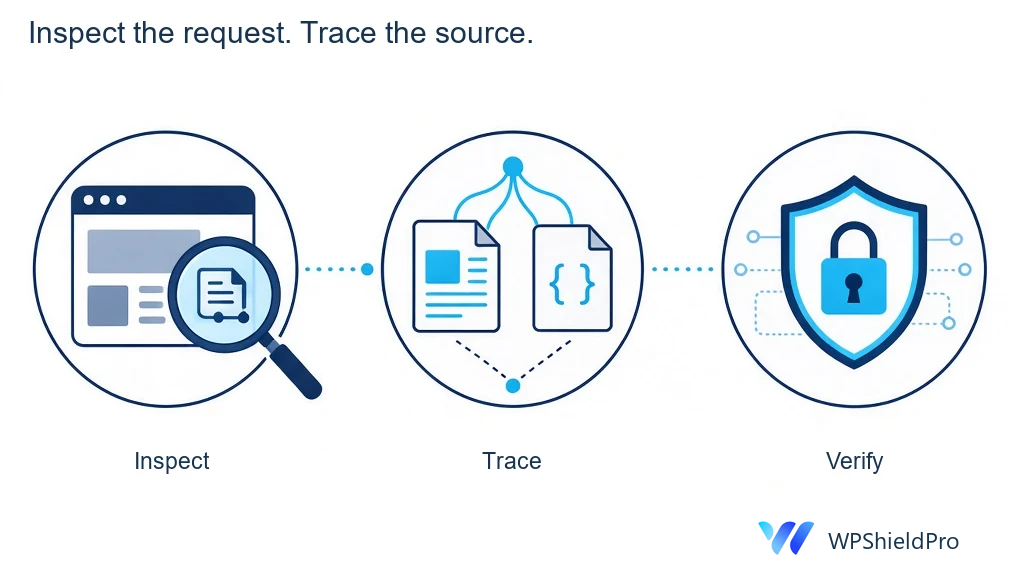
The illustrations describe a troubleshooting workflow; they are not screenshots of a customer website.
Check the destination before editing the reference
Changing a URL from HTTP to HTTPS only helps if the correct resource is available securely. Check the final destination after redirects, the certificate and the response itself. A successful response containing an HTML error page is not the stylesheet or photograph the page needs.
For a third-party resource, use the provider's documented secure URL. If there is no supported HTTPS destination, assess whether the component should be replaced or removed within the agreed scope. Allowing insecure content in a visitor's browser does not repair the reference for other visitors.
A single setting may need a single correction. A migration affecting many stored references may need a broader operation, but that requires an agreed scope, a backup and a recovery plan. WordPress can store serialized data, so plain text substitution across an exported database can damage more than URLs.
WP-CLI's search-replace command handles serialized data and provides a dry run. Those capabilities help a maintainer review a proposed change; they do not make an unrestricted database replacement an appropriate first step for one broken image. This guide deliberately does not prescribe a live-site replacement command without knowing the installation and affected tables.
Verify the same example after the change
Return to the original page and repeat the check. Confirm the final resource URL, the browser message, the image and the styling. If generated CSS or a cache still contains the previous reference, handle the relevant layer and compare again. Clearing caches by itself does not identify the cause.
Check layouts that use different resources. A mobile background can differ from the desktop background, and a translated page can have a separate attachment. Include relevant business pages instead of stopping at the home page. If an affected script supports a form or checkout, test that flow only within the authorised scope.
Leave a short record of the resource, where the reference was found, what changed and which pages were checked. That makes a later recurrence easier to investigate than a note saying only “SSL fixed.”
This article is adapted with AI assistance from WPShieldPro's original guide to WordPress mixed content. WPShieldPro publishes practical WordPress maintenance and troubleshooting notes. The canonical source is the original guide.
About the author
- WordPress maintenance and troubleshooting notes from WPShieldPro, operated by Zhengzhou Wozhitao Technology Co., Ltd. Based in Zhengzhou, China. Website: https://www.wpshieldpro.com/en/
Comments
Join the discussionNo comments yet. Be the first to comment.