A WordPress Form Says Sent: Build a Trace Before Changing Email Settings
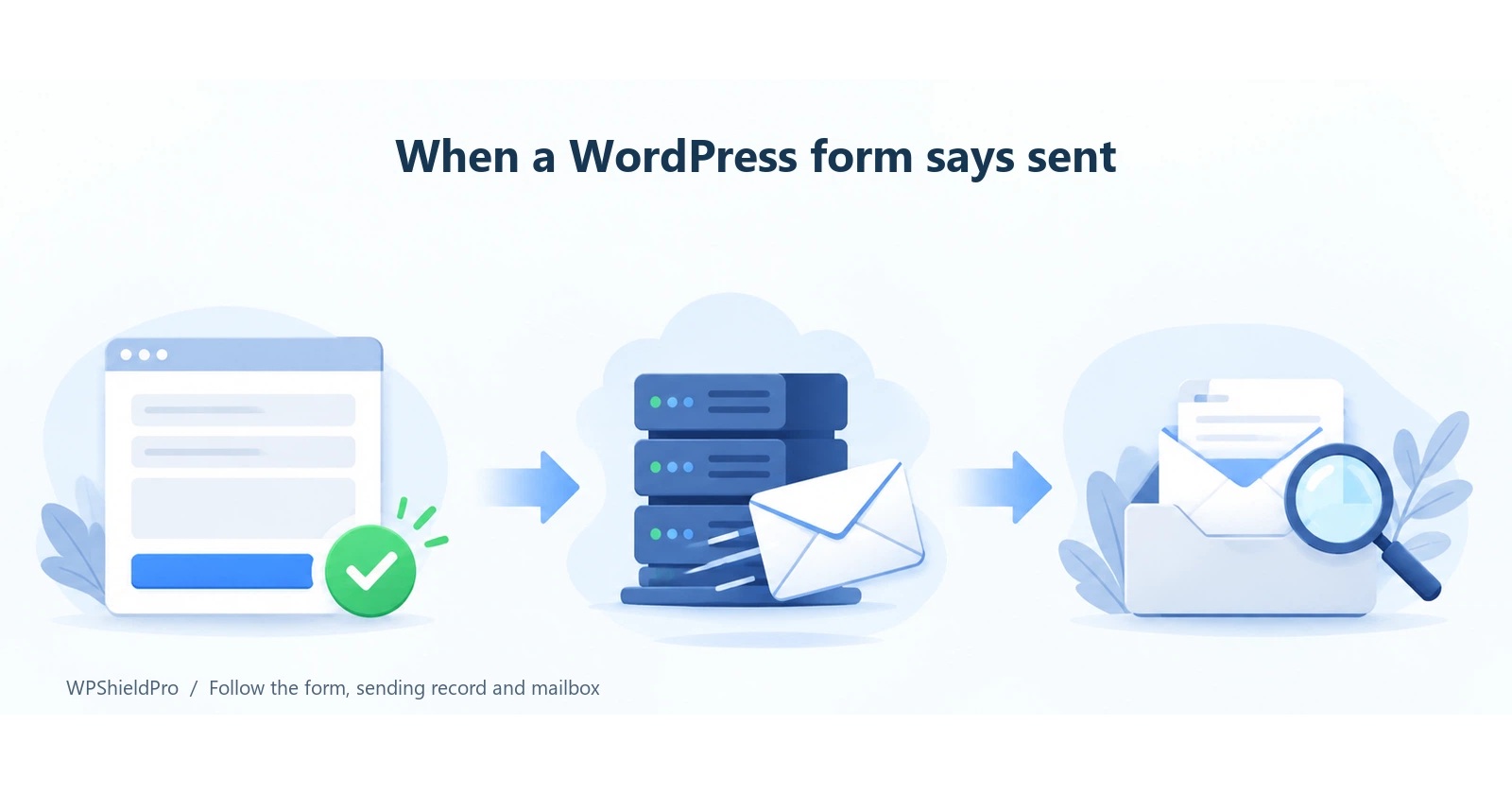
A visitor submits an enquiry. The form displays a success message, but the notification never appears in the expected mailbox. There are several places to investigate, and changing the SMTP plugin is only one possible response.
Start with one identifiable submission. Follow it from the actual page to the notification settings, the sending records and the receiving mailbox. This gives the website maintainer and email administrator something specific to compare.
Record one test that everyone can find
Use contact details you control and a distinctive marker, such as Enquiry test A1. Record the page URL, submission time and the response shown by the form. Include the time zone if different people will investigate the message.
Keep the original settings for this first test. Changing the recipient, sender and sending service together can produce a working result without explaining which change mattered. Save the relevant configuration before adjusting one part of the route.
The first question is also a business question: was the enquiry saved anywhere? A stored entry may let someone respond while notification delivery is investigated. Storage and delivery need separate checks; neither proves the other worked.

Separate the stages of the message
| Stage | Useful evidence | What remains unproven |
|---|---|---|
| Form submission | The active form, its response and any stored entry | Whether a notification was sent |
| Sending | A matching log entry, provider event or error | Whether the recipient can find the message |
| Receiving | The intended mailbox, quarantine or message trace | Whether all other form routes also work |
The WordPress reference for wp_mail() makes a useful distinction: a successful return indicates that the sending method processed the request without reporting an error. It does not establish that the recipient received the email.
A plugin's success response should therefore be read alongside that form's configuration. First identify which form is actually embedded on the page. An old form with a similar name can be a distracting place to investigate.
Check who should receive the notification
Review the recipient in the active notification, including any conditional routing. A department choice might send enquiries to different people. A destination can also remain set to a former colleague after the visible contact details on the website have changed.
Check the fields used by the email template. If an optional field supplies a header value, what happens when the visitor leaves it empty? Work from the current configuration rather than assuming the default template is still in use.
The sender and reply destination have different jobs. Contact Form 7's mail guidance recommends a sender address on the website's domain and explains how Reply-To sets the reply destination. This is guidance for that plugin; the actual sending service has its own sender requirements too. A visitor's address generally belongs in the reply information rather than being used as an identity the website claims to send from.
Read a missing log entry carefully
Locate the same test by its time, subject and recipient in any existing mail log or sending dashboard. Before treating an empty search as evidence, establish when logging began and which sending routes it covers.
If there is an error, preserve the actual response. If the provider accepted the request, examine its delivery or bounce information and the provider's definition of those events. Avoid treating every status labelled “sent” or “delivered” as proof of inbox placement.

Ask the receiving email administrator to look for the same marker in spam, quarantine and available message-tracing tools. The time and intended recipient help them distinguish this test from unrelated messages.
Change the part supported by the evidence
An SMTP connection or sending service may be appropriate, but it still needs valid credentials, a suitable sender and the provider's configuration. Installing another tool does not identify where the previous route failed.
If sender authentication needs attention, involve whoever manages the domain and email service. SPF and DKIM settings need to reflect the business's actual senders. Do not replace working domain records with a generic example while investigating a single form.
Retest from the original page
After addressing the identified issue, submit a new marker through the original form. Check its response, sending evidence and receipt of the complete message. Test department routing, attachments or an automatic reply when those are part of the real enquiry process.
A mail tool's built-in test can help check its sending connection. It does not exercise the form's particular notification rules, so receiving that test message is a step in the investigation rather than the final acceptance check.
For a handover, keep the form URL, test time, response, intended recipient, relevant sending record and the confirmed result together. Remove unrelated customer details before sharing them. This lets the next person follow the same submission instead of starting again with guesses.
Adapted from the WPShieldPro guide to missing WordPress form emails. WPShieldPro publishes practical notes on WordPress maintenance and troubleshooting. The examples here describe an investigation method, not a reported customer incident.
About the author
- WordPress maintenance and troubleshooting notes from WPShieldPro, operated by Zhengzhou Wozhitao Technology Co., Ltd. Based in Zhengzhou, China. Website: https://www.wpshieldpro.com/en/
Comments
Join the discussionNo comments yet. Be the first to comment.