What to leave in a WordPress maintenance handover
“Fixed” is a difficult handover to work from. A week later, someone still needs to know what changed, which environment was tested, and whether the result was confirmed by the person using the site.
A useful maintenance note does not have to be long. It needs enough detail for another person to check the result without repeating the whole investigation. The following is a practical format for routine WordPress work, not a report about a particular client.
Name the part of the site you worked on
Start with the agreed task. “Website maintenance” might mean updating three plugins, correcting a contact form notification, or repairing a page template. Those are different jobs with different acceptance checks.
Record whether the work was done on staging or production. A successful staging test does not establish that the production change has been deployed. If the work covered one form, say so rather than describing the entire website as healthy.
When another issue appears during the work, record it separately. Finding an unrelated problem does not mean it has been fixed, or that permission has been given to spend more time on it.
Leave a change record someone can locate
For an update, record the component and its before-and-after versions. For a code change, identify the file, function or commit. For a setting, describe the field and the values that changed.
A note such as “adjusted email settings” is hard to follow. “Changed the recipient for the enquiry form notification” is more useful, provided the exact configuration is available in the private work record.
Include the date, time zone and maintenance window. Keep credentials, tokens, customer messages and order details out of a public article or a broadly shared handover. Link to an access-controlled record when those details are needed.
Describe the backup you actually have
WordPress files and the database are separate parts of a backup. Downloading a theme does not preserve posts, settings and store records. Exporting a database does not preserve uploaded images or custom theme files. The official file backup guide and database backup guide explain that distinction.
Record the backup time, coverage and storage reference. Also state whether a restore has been tested. A completed backup job and a verified restore are different observations.
For an active store, the recovery plan also needs to account for business activity after the backup. Restoring an older database can affect newer records. Check what the actual backup tool restores and how recent orders will be handled before choosing a recovery method. WooCommerce’s backup documentation is a useful starting point; the tool-specific recovery instructions still matter.
Make the verification repeatable
Write down the page, browser or device, login state, action and observed result. An image of the home page loading does not establish that a form, account area or checkout works.
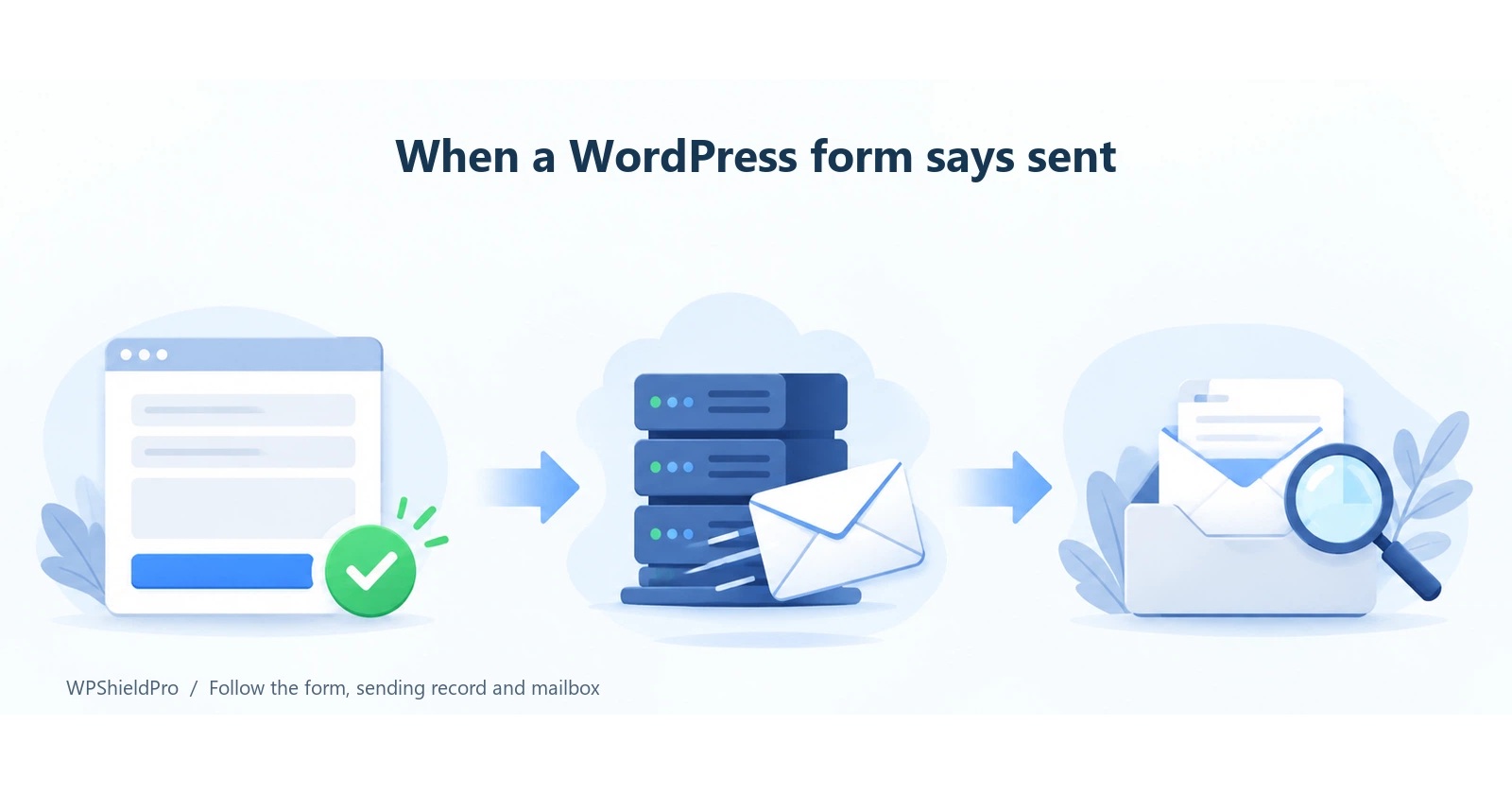
For a contact form, use a test marker without customer information. Record the submission result, any available form record, and whether the intended recipient confirmed delivery. If the page reports success but delivery has not been checked, write exactly that.
Store checks need similar precision. Browsing a product, adding it to a cart, creating a test order and completing a payment are separate steps. Mark any untested stage. A maintenance check is not permission to trigger a real charge.
Here is an illustrative note, with no real project data:
- Scope: the enquiry form on the production contact page.
- Change: the notification configuration; the private record contains the affected field and before-and-after values.
- Backup: timestamp, coverage and storage reference recorded; restore test status stated separately.
- Check: a submission with a non-sensitive test marker; the page showed success.
- Still open: recipient confirmation of delivery.
- Next action: the site contact checks receipt before the issue is marked complete.
Give unfinished work an owner
End with what remains, who needs to act, and what observation would trigger another check. A third-party outage, missing access or a compatibility question may prevent full resolution. Recording the limit is more helpful than hiding it behind “all done.”
The handover should let the next maintainer trace the change, repeat the check and see the remaining work. That is enough to make a short note useful.
Published by WPShieldPro, a WordPress maintenance and repair service operated by Zhengzhou Wozhitao Technology Co., Ltd. Service scope and working arrangements are described on the WPShieldPro website.
About the author
- WordPress maintenance and troubleshooting notes from WPShieldPro, operated by Zhengzhou Wozhitao Technology Co., Ltd. Based in Zhengzhou, China. Website: https://www.wpshieldpro.com/en/
Comments
Join the discussionNo comments yet. Be the first to comment.